The Complete Guide to Setting Up Your AI Sales Agent on Pleep
By Eugenia Eikina, Product Manager at Pleep
Setting up an AI sales agent on Pleep takes 5-15 minutes and requires zero coding — you answer 7 questions about your business, and the platform builds a multimodal assistant that texts, calls, and closes deals automatically.
You have heard the case studies. Companies are doubling bookings, earning millions in their first week, and automating 70% of customer inquiries. According to the IBM Global AI Adoption Index, 35% of companies worldwide already use AI in their operations — and the number is growing every quarter. Now it is time to do it yourself.
This guide walks you through every step of setting up an AI sales agent on Pleep — from your first click to a fully operational, multimodal AI employee that texts, calls, and closes deals while you focus on growing your business. No coding required. No prompt writing. No AI expertise needed. Just 5-15 minutes and answers to 7 questions about your business.
Step 1: Create Your Account
Start by registering at pleep.app. The registration link includes a built-in promo code that gives you 7 days of trial access — without it, you would need to pay before creating an assistant.
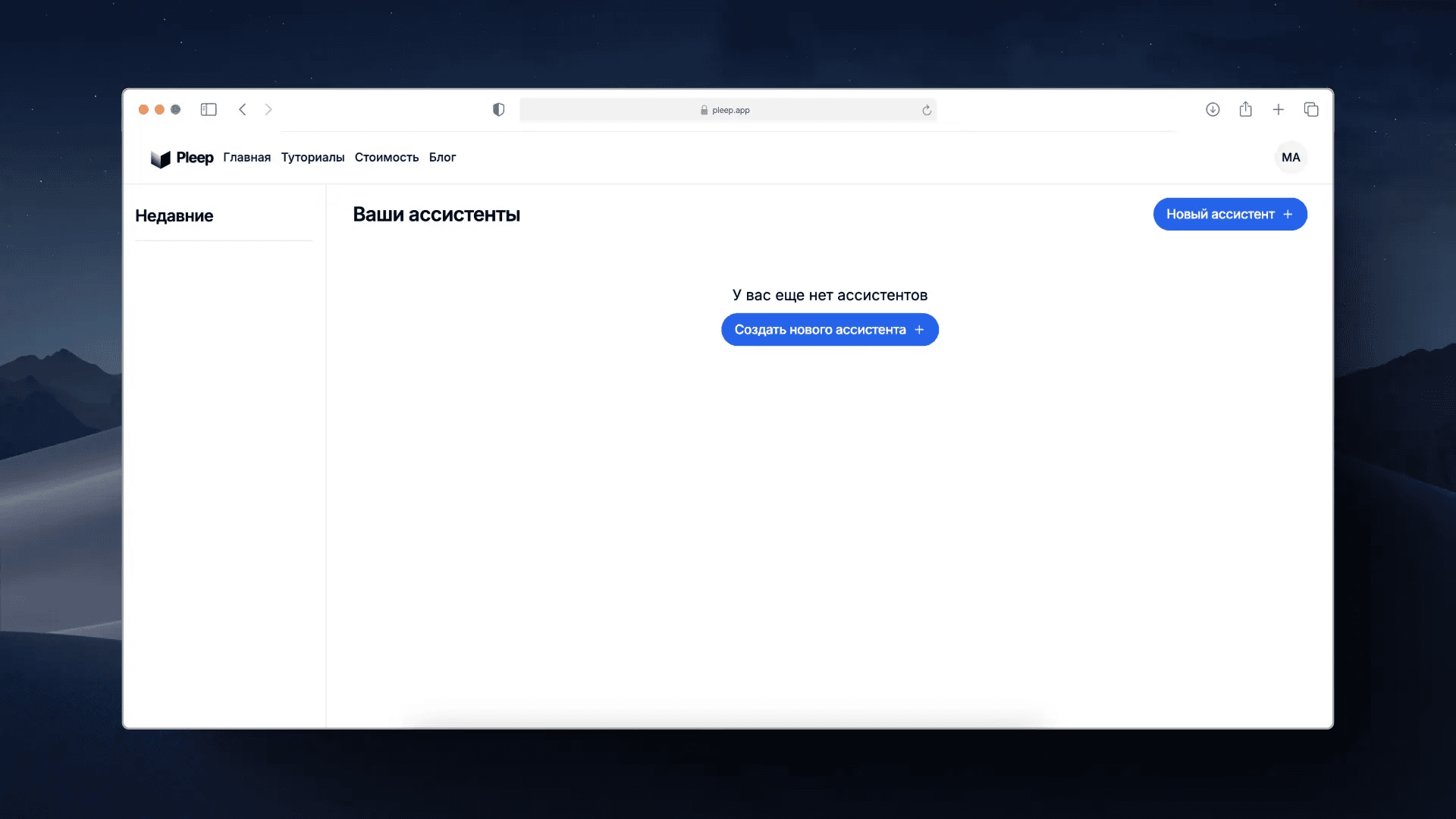
After registration, you will see your dashboard. Click the New Assistant button to begin.
Step 2: Create Your AI Assistant in 5 Minutes
This is where Pleep's simplicity stands out. You do not need to write a prompt, configure parameters, or understand anything about AI. Instead, you answer 7 straightforward questions about your business:
- What does your company do?
- Who are your customers?
- What services or products do you offer?
- What are common objections?
- What is your communication tone?
- And a few more details about your sales process
Based on your answers, Pleep automatically creates a prompt, selects the optimal AI model, and configures it so your AI assistant works great right out of the box.
After answering all the questions, click the Create Assistant button.
Congratulations — your AI assistant is almost ready. Now comes the fine-tuning.
Step 3: Set Up the Knowledge Base
When you created the AI assistant, you configured its logical behavior — how it builds dialogue with clients and communicates with them. Now the assistant needs contextual information about your business: service prices, product catalogs, your company's advantages, operating hours, and so on.
Go to the Knowledge Base section.
Here you can upload documents that will be available to your AI assistant. We strongly recommend connecting Google Docs or Google Sheets for automatic data synchronization. When you link these documents, every time you make changes, the assistant automatically updates its knowledge base.
Pro tip: The more detailed and organized your knowledge base, the better your assistant performs. Include pricing tables, FAQs, product descriptions, shipping policies — anything a customer might ask about.
Step 4: Test Your Assistant
After uploading documents to the knowledge base, it is time to put your assistant through its paces. Select the Testing section in the left navigation menu.
Communicate with the AI assistant as if you were a customer. Ask the questions your real clients ask. Try to catch it off guard. Push its boundaries. The goal is to identify any shortcomings before real clients interact with it.
Things to test:
- Does it know your prices correctly?
- Does it handle common objections well?
- Does it escalate complex questions to a human?
- Is the tone right for your brand?
- Does it guide conversations toward your desired outcome (booking, purchase, consultation)?
Step 5: Correct the Behavior
Once you have tested the assistant and identified what needs to change, it is time for corrections. Here is where Pleep has a feature that sets it apart: you do not need to edit the prompt. This is Pleep's behavior correction system.
Go to the Correction section.
Simply describe in detail what does not suit you and how the AI assistant should actually behave. This is very similar to the feedback you give a real sales manager — the more detailed, the better.
For example:
- "When a client asks about delivery to Russia, the assistant says it is not available. But we do deliver to Russia. Please fix this."
- "The assistant is too pushy when trying to schedule a meeting. It should be more gentle and suggest instead of insist."
- "When clients say 'too expensive,' the assistant should mention our installment plan option."
Click the Edit button, and Pleep will reconfigure the AI assistant based on your comments. Then test again. Repeat until you are satisfied.
Step 6: Integrate Communication Channels
Now that your assistant is tested and polished, it is time to put it to work in the real world. Go to the Integrations section.
Pleep supports all major channels:
- WhatsApp (including official WABA integration for maximum stability)
- Telegram
- Website widget
Select the channels your clients use and integrate your AI assistant. Integration happens in a couple of clicks, and for each channel there is a video tutorial right inside the service.
Important: If you use WhatsApp, we strongly recommend connecting through WABA (WhatsApp Business API) rather than the "gray" integration. WABA provides officially guaranteed stability and reliability. It takes just 10 minutes to set up, and company verification is not required.
Step 7: Connect Your CRM
For maximum efficiency, connect your AI assistant to your CRM system. Pleep integrates with:
- amoCRM — every conversation automatically creates a lead card with the full dialogue visible
- Bitrix24 — similar automatic synchronization
When someone messages your assistant through any channel, a lead is created in your CRM automatically. When you respond directly from the CRM, the AI assistant switches to operator mode and steps aside. This ensures seamless handoffs between AI and human communication.
Connect amoCRM in the "Export" section of your dashboard.
Step 8: Install the Pleep App on Your Devices
To manage your assistant on the go, install Pleep as an app on your phone or laptop. This is not a typical app from the AppStore or PlayMarket — it is a Progressive Web App that you install directly from the Pleep website.
For iOS (iPhone and iPad)
- Open Pleep in Safari
- Tap the share icon at the bottom
- Select "Add to Home Screen"
- Tap "Add"
For Android
- Open Pleep in your browser
- Tap the three dots in the upper right corner
- Select "Add to Home Screen" or "Install app"
For Laptop / PC / macOS
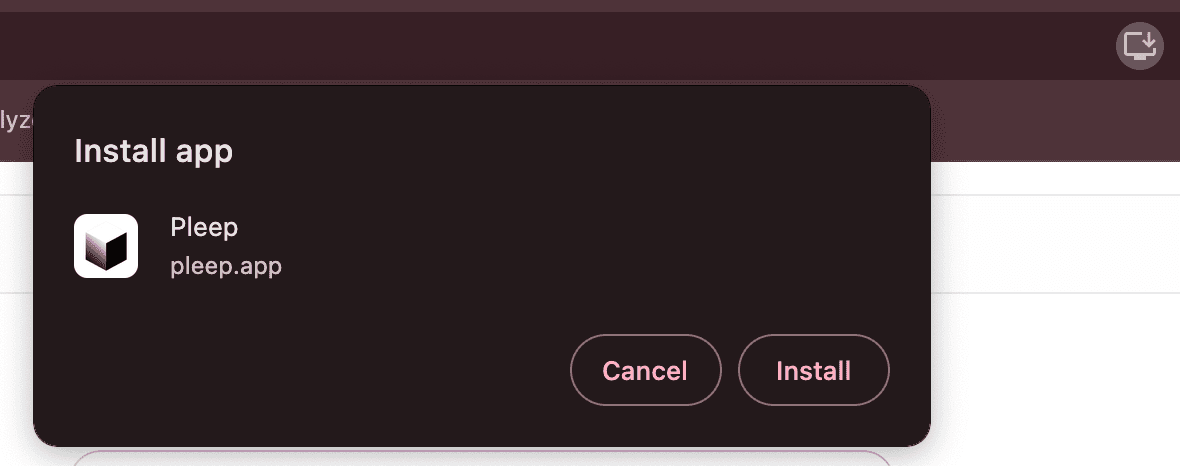
- Find the download icon in the upper right corner of your browser
- Click it, then click Install
Now you can manage your assistant, view conversations in monitoring, and respond to escalated requests from anywhere.
Step 9: Enable Voice Agents (Advanced)
If you want to take customer communication to the next level, Pleep offers voice AI agents — a breakthrough that combines text and voice communication in one intelligent system.
Why Voice Matters
According to the Salesforce State of Sales report, sales reps spend only 28% of their time actually selling — the rest goes to admin and follow-ups. On top of that, more than 62% of calls in small and medium businesses go unanswered. Every missed call is a missed sale. A voice AI agent solves this by answering calls instantly, 24/7.
How It Works
Your AI assistant can start by writing to a client, asking if it is convenient to take a call. After getting consent, it places the call — exactly as your best manager would. During communication, the AI agent can switch between text and voice seamlessly. After discussing details over the phone, it can offer to send additional information in WhatsApp.
Most importantly — the assistant maintains a unified context across both modalities. It remembers the chat history when talking on the phone, and vice versa. This makes the experience feel natural and personalized.
How to Connect
- Subscribe to a plan that includes the voice agent feature
- A corresponding section will appear in your dashboard
- Choose a voice for your AI agent
- It will be assigned a unique virtual phone number
Pleep was the first product to offer multimodal AI agents that can both text and call while maintaining unified communication context. This is the closest an AI has come to fully replicating human communication.
Want to hear it live? Call +7 778 753 18 60 and our AI salesperson will demonstrate.
Ongoing Optimization: The First Two Weeks Matter
Your AI assistant is live. But the work does not stop here. The first 14 days determine the quality of your AI agent for months to come.
Daily Review (Week 1)
- Check 10-15 conversations each day
- Note any incorrect answers or missed opportunities
- Make corrections using the Correction section
- Update the knowledge base with missing information
Weekly Review (Week 2+)
- Enable Detailed Analytics in the Statistics section to track conversion rates automatically
- Monitor which questions trigger operator requests and add those answers to your knowledge base
- Track response time trends and conversion metrics
The Optimization Cycle
- See the problem in analytics or conversation logs
- Fix it through corrections or knowledge base updates
- Check the result after a few days of data
This continuous improvement loop is what separates good AI assistants from great ones. The businesses that see the best results are those that invest time in the first two weeks of optimization.
Quick Reference: Your Setup Checklist
- Register at pleep.app (activate free trial)
- Create assistant — answer 7 questions
- Upload knowledge base (Google Docs recommended)
- Test as a customer in the Testing section
- Make corrections — describe what to fix
- Connect channels (WhatsApp/WABA, Telegram, Instagram)
- Connect CRM (amoCRM or Bitrix24)
- Install Pleep app on phone and laptop
- Enable voice agent (optional)
- Review and optimize daily for the first two weeks
Total setup time: 5-15 minutes. Your AI assistant is ready to serve clients around the clock.
FAQ
Do I need any technical skills or AI knowledge to set up Pleep?
No. The entire setup process is designed for non-technical business owners. You answer 7 questions about your business, upload your knowledge base documents, and Pleep automatically creates the AI assistant with the right prompt, model, and configuration. No coding, no prompt engineering.
What is the best way to build a knowledge base for my AI assistant?
Connect Google Docs or Google Sheets for automatic synchronization — whenever you update the document, your assistant's knowledge updates too. Include pricing, product catalogs, company advantages, operating hours, common objections, and any information a sales manager would need to close a deal.
How do I know if my AI assistant is performing well?
Use the Testing section to interact with your assistant as a customer would, then check real conversation logs once live traffic starts flowing. Enable Detailed Analytics in the Statistics section to track conversion rates, response times, and operator request percentages. The optimization cycle — see the problem, fix it, check the result — is what separates good results from great ones.
Can I connect my AI assistant to WhatsApp and CRM at the same time?
Yes. Pleep supports simultaneous connections to WhatsApp (personal or WABA), Telegram, Instagram, and CRM systems like amoCRM and Bitrix24. Leads from all channels flow into one unified inbox and are automatically created in your CRM.
Create your AI assistant today on Pleep and get 7 days of trial access.