Обновленный виджет для сайта
Что изменилось
Раньше виджет был простой кнопкой в углу с ограниченными настройками. Теперь вы можете выбрать тип отображения, настроить внешний вид и подготовить клиента к разговору еще до первого сообщения.
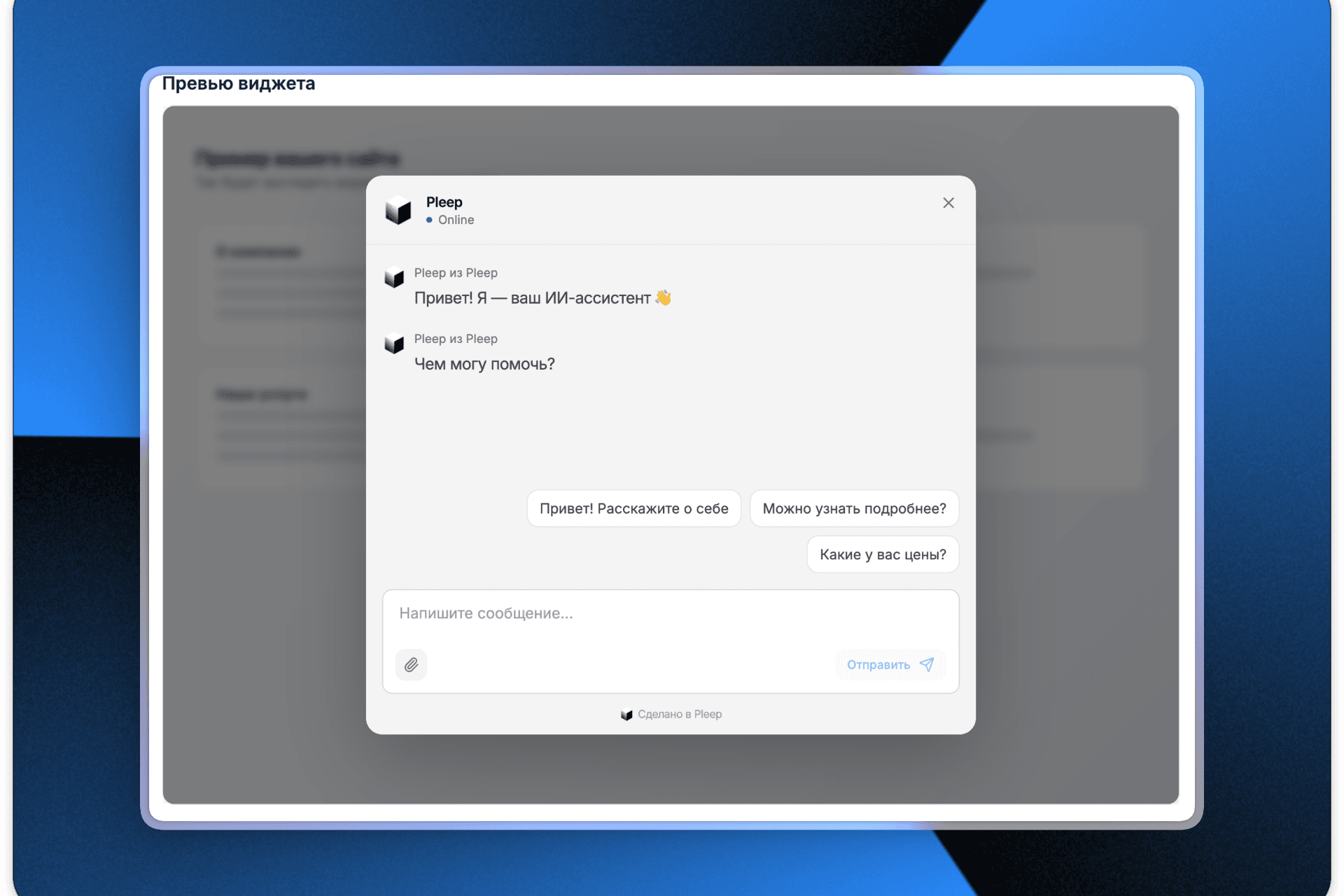
Новые возможности
Два типа виджета на выбор
Выбирайте, как виджет будет отображаться на вашем сайте:
→ Кнопка в углу — компактная кнопка в углу страницы (классический вариант) → Панель по центру — панель ввода внизу по центру страницы (более заметная, подходит для лендингов)
Позиция настраивается прямо в интерфейсе, и вы сразу видите, как это будет выглядеть в превью.
Приветственные сообщения
Теперь виджет может автоматически показывать приветствие от ИИ-продажника при открытии:
→ Добавьте одно или несколько приветственных сообщений → Они появятся в начале каждого нового диалога → Помогают "прогреть" клиента и объяснить, с кем он общается
Пример:
- "Меня зовут Мария — я ИИ-продажник, созданный на Pleep"
- "Готова ответить на ваши вопросы :) кстати — вы можете создать такого же ИИ-продажника для вашей компании всего за 5 минут"
Предложенные вопросы
Добавьте кнопки с популярными вопросами, которые клиент может задать одним кликом:
→ "Чем Pleep отличается от чат-ботов?" → "Как это помогает в продажах?" → "Какие цены?"
Это снижает порог входа — клиенту не нужно придумывать, что написать. Он видит готовые варианты и кликает на интересующий вопрос.
Настройка внешнего вида
Полный контроль над визуалом виджета:
→ Текст кнопки — измените стандартное "Есть вопросы? ИИ на связи" на своё → Логотип — загрузите логотип компании или аватар ИИ-продажника → Название рядом с логотипом — добавьте имя ИИ или название компании
Превью в реальном времени
Не нужно публиковать изменения, чтобы посмотреть результат. Превью виджета обновляется прямо в интерфейсе настроек — вы сразу видите, как будет выглядеть виджет на вашем сайте.
Простая установка
Процесс остался таким же простым:
- Настройте виджет в разделе "Расширения"
- Скопируйте готовый код
- Вставьте его в <body> вашего сайта
Виджет работает на всех популярных конструкторах: Tilda, Wix, Squarespace, Framer, Webflow, WordPress и любых HTML-сайтах.
Что это даёт
→ Больше конверсий — предложенные вопросы снижают порог входа в диалог → Лучший первый опыт — приветственные сообщения объясняют клиенту, с кем он общается → Брендированный виджет — логотип и название создают доверие → Гибкость — два типа виджета под разные задачи и типы сайтов → Экономия времени — видите результат в превью до публикации
Как начать использовать
- Зайдите в раздел "Расширения"
- Выберите тип виджета (кнопка в углу или панель по центру)
- Настройте приветственные сообщения и предложенные вопросы
- Загрузите логотип и настройте текст
- Скопируйте код и вставьте на свой сайт
Если виджет уже установлен на вашем сайте — просто обновите код, и все новые настройки применятся автоматически.
Если возникнут вопросы с настройкой — напишите в техподдержку, поможем с интеграцией.
Команда Pleep